This quick tutorial shows you how to use Artistly’s simplest tool. Once you log into Artistly, go to “Create Design” and select the option “Fast AI Image Designer.” You will then be taken to the menu shown below. Don’t feel overwhelmed; I will cover each tool in this tutorial series. Below the category “AI Image Designer v6,” select “Create From Prompt,” which is the first choice from the left.
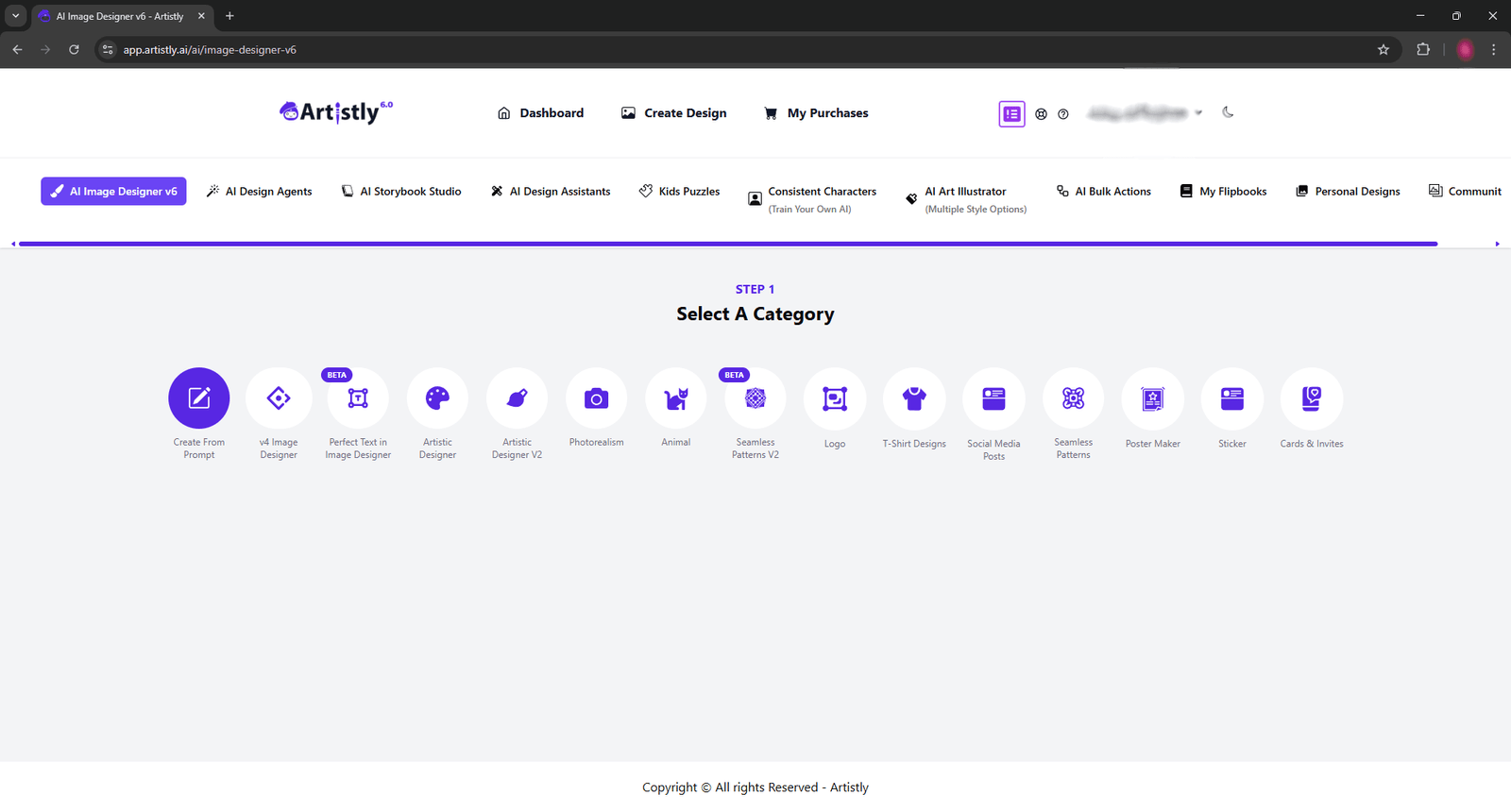
This basic tool gives us a lot of freedom and control over what we want to generate. It is not tied to a specific function like T-shirt designs or posters. Please keep in mind that Artistly AI is not for generating sexual, gore, hate, or suggestive content.
Once you select the Generate From Prompt tool, the following will appear below.
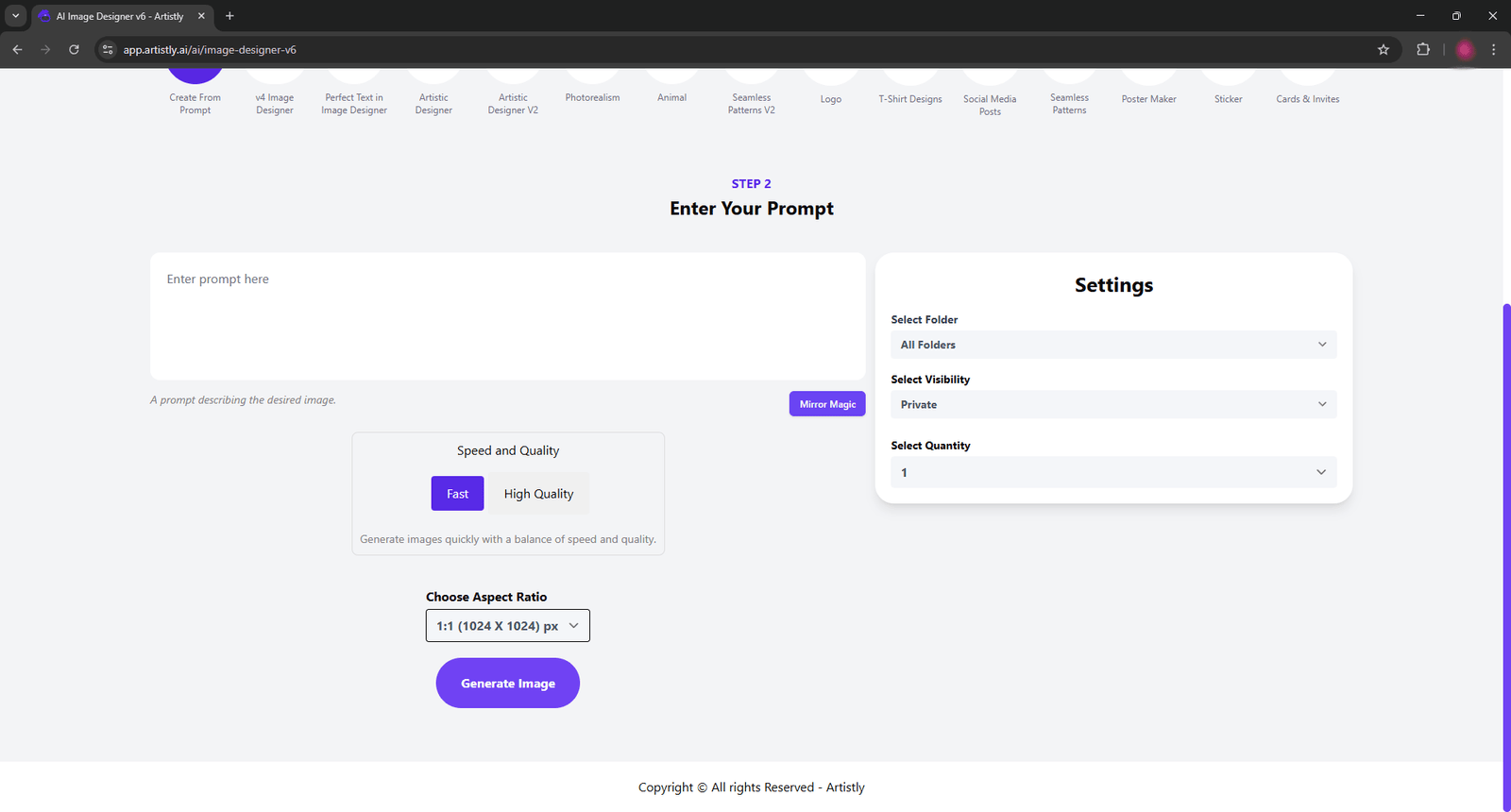
The white box where you can enter text is where you type the prompt. For this tutorial, I will type the prompt “a fox paces through the forest.” Of course, you can type in anything you want, as long as you follow Artistly’s terms of use.
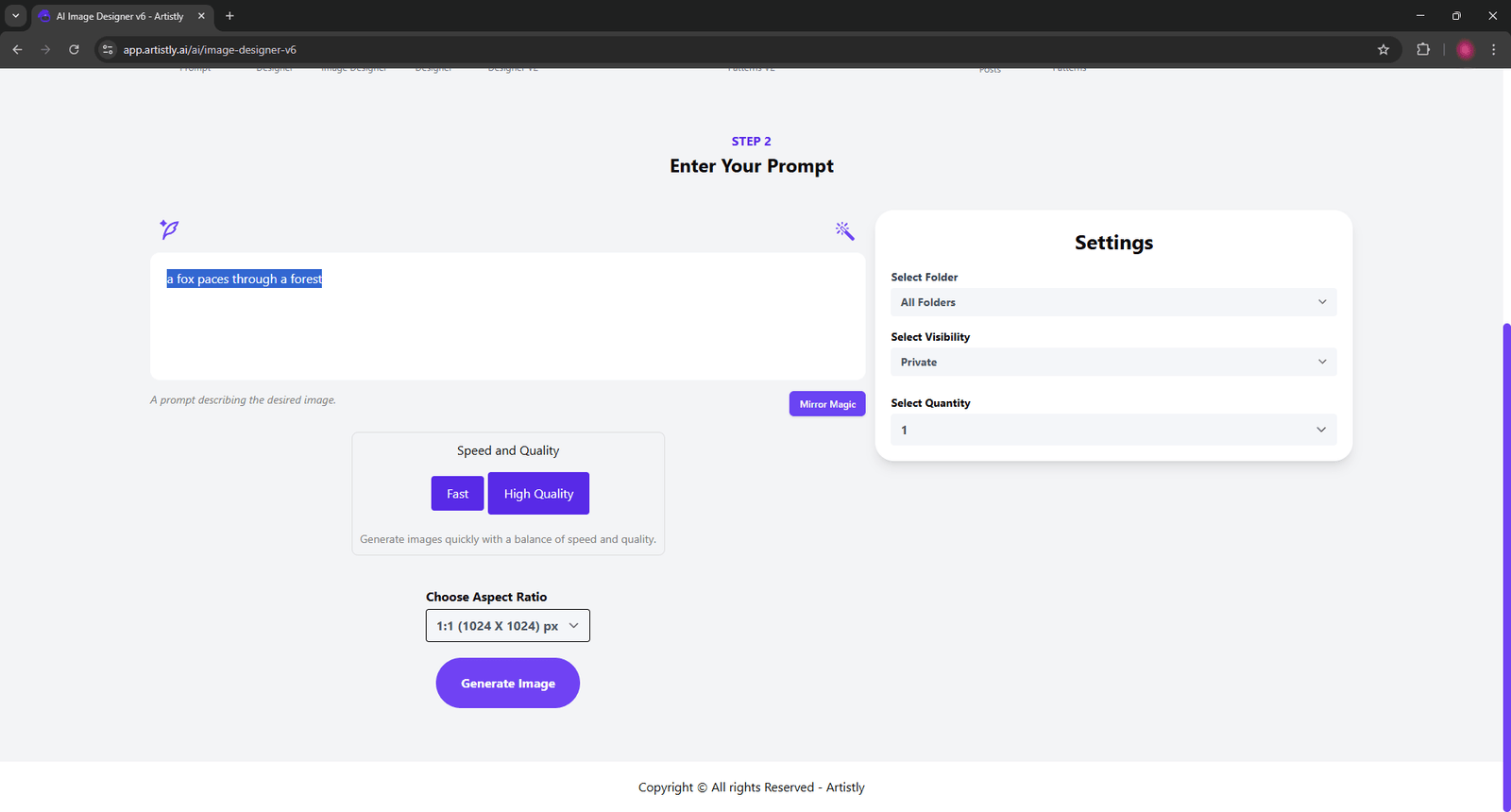
There are a couple of icons like a feather and magic wand that we are going to ignore for now. I just want to show you guys the simplest way possible for generating an image on Artistly. If you want your image to be generated fast, select the “fast” option below the prompt box. If you’re looking for quality, select the “High Quality” option. I recommend always using High Quality when generating professional designs on Artistly. And to be honest, “High Quality” is pretty fast as well!
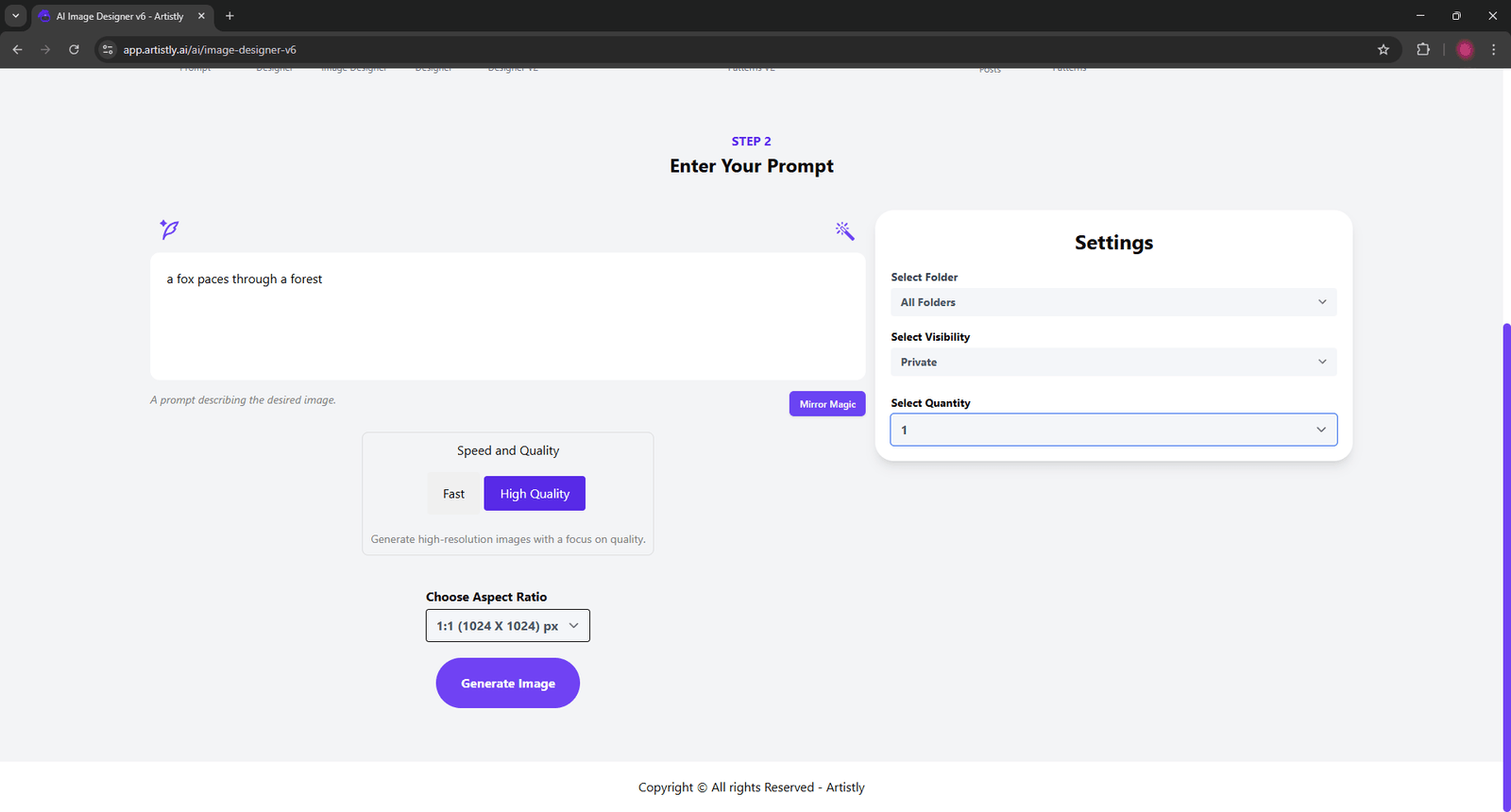
The box I circled below is where you can change the aspect ratio of your image. I’m not gonna ramble on about how aspect ratio works in this tutorial. In short form, the number to the left of the colon (:) is the width of the image, and the number to the right is the height. 1:1 = square image.
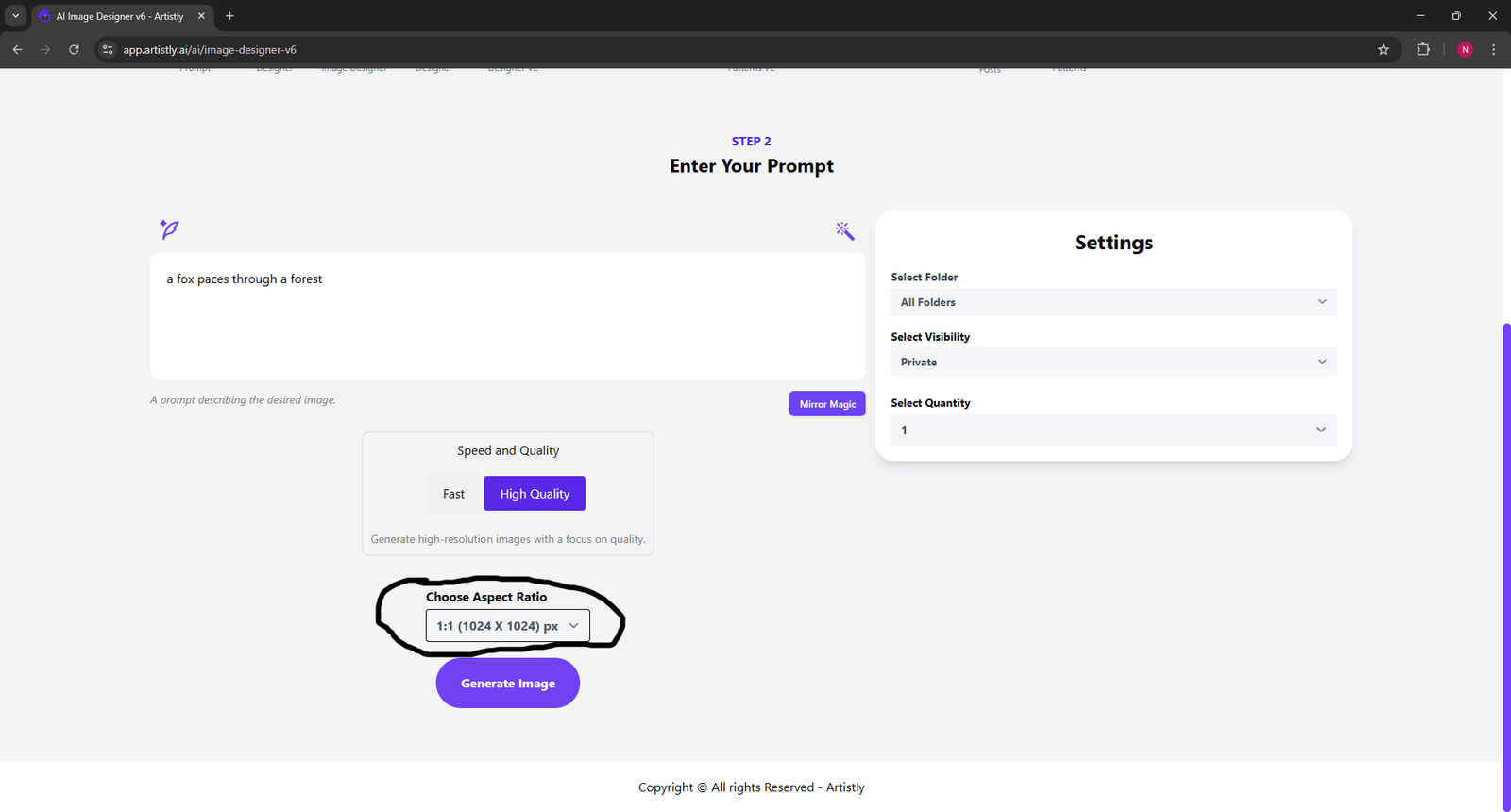
You can also select the number of images per generation under the option “Select Quantity.” For now, we will stick to 1 image. Once you have selected your preferences, hit that big, juicy “Generate Image” button.
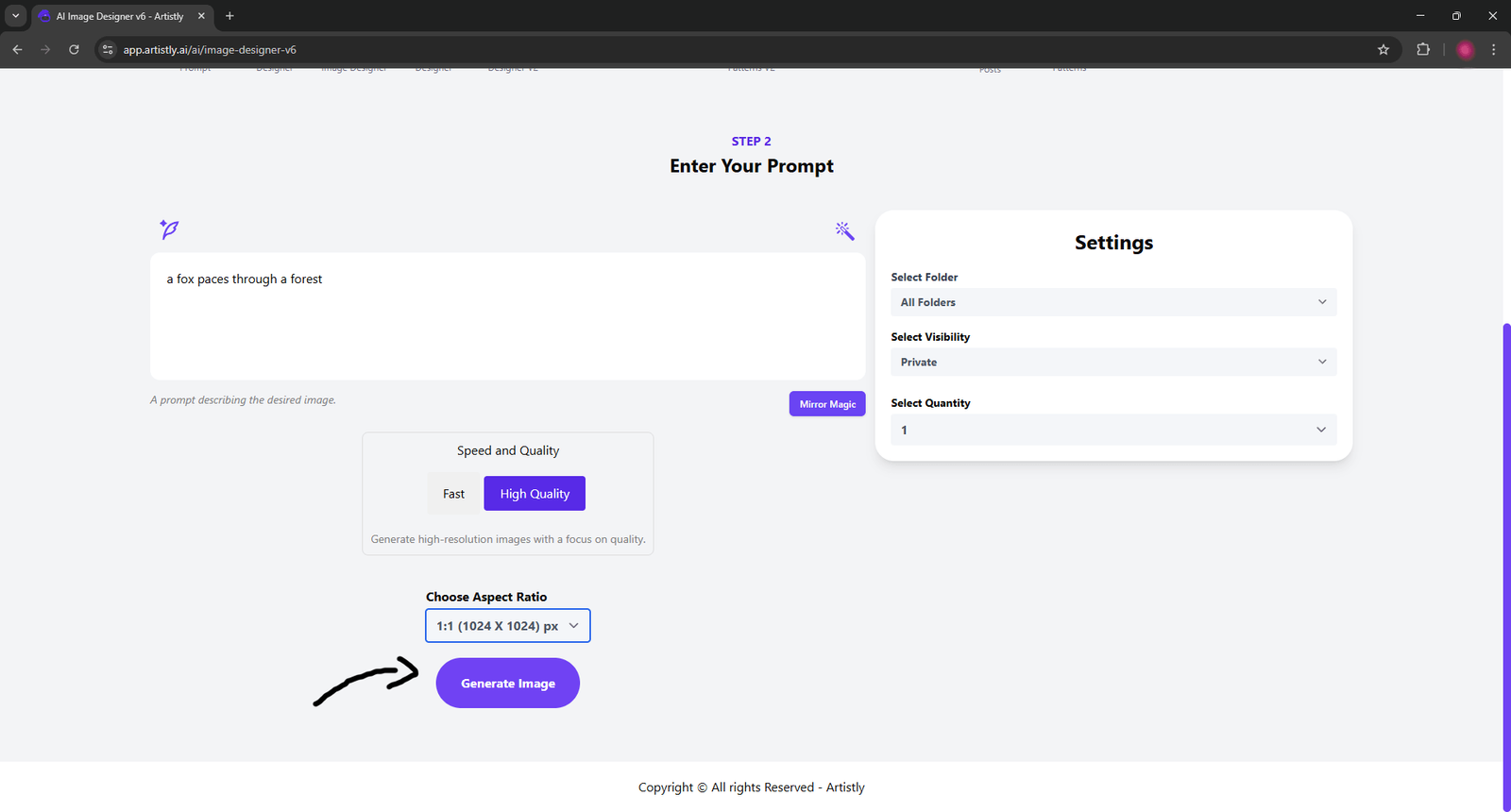
You will be taken to the following screen shown below. After a few seconds (and by few I mean as little as 4 seconds), your image will be generated and ready for use. Your image will always be photorealistic if you don’t specify the style. If we had specified “vector art” in the prompt box, our little fox would have been generated in a vector art style.
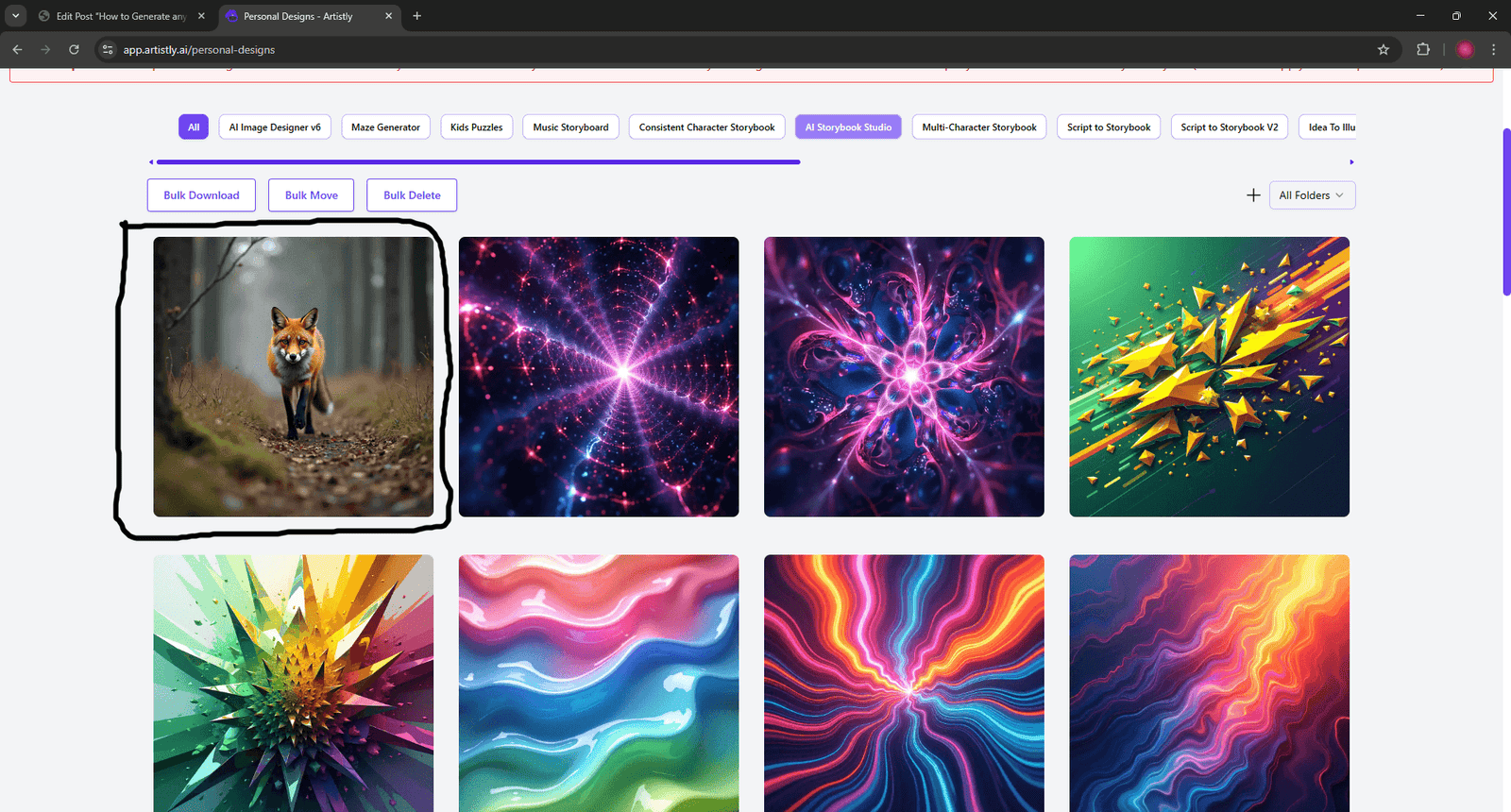
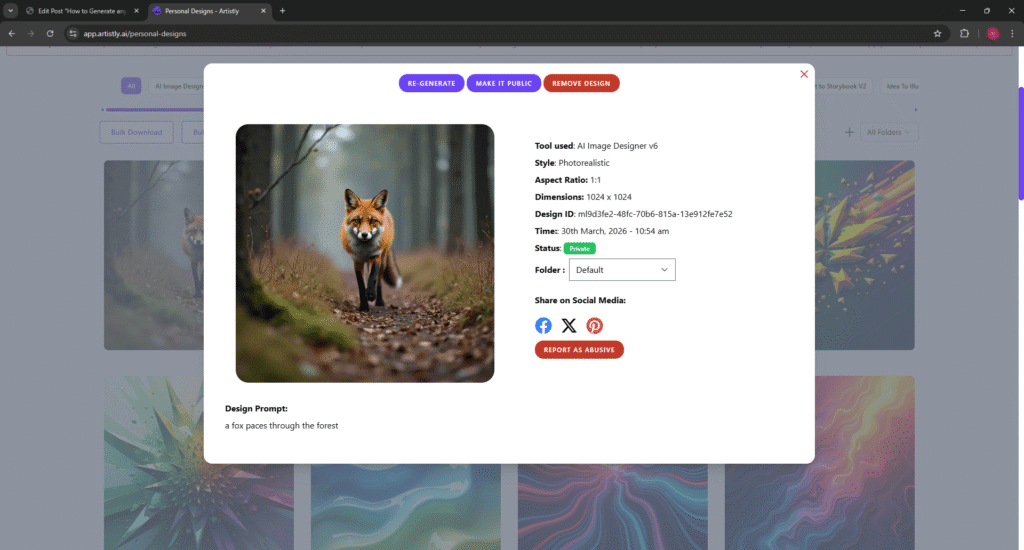
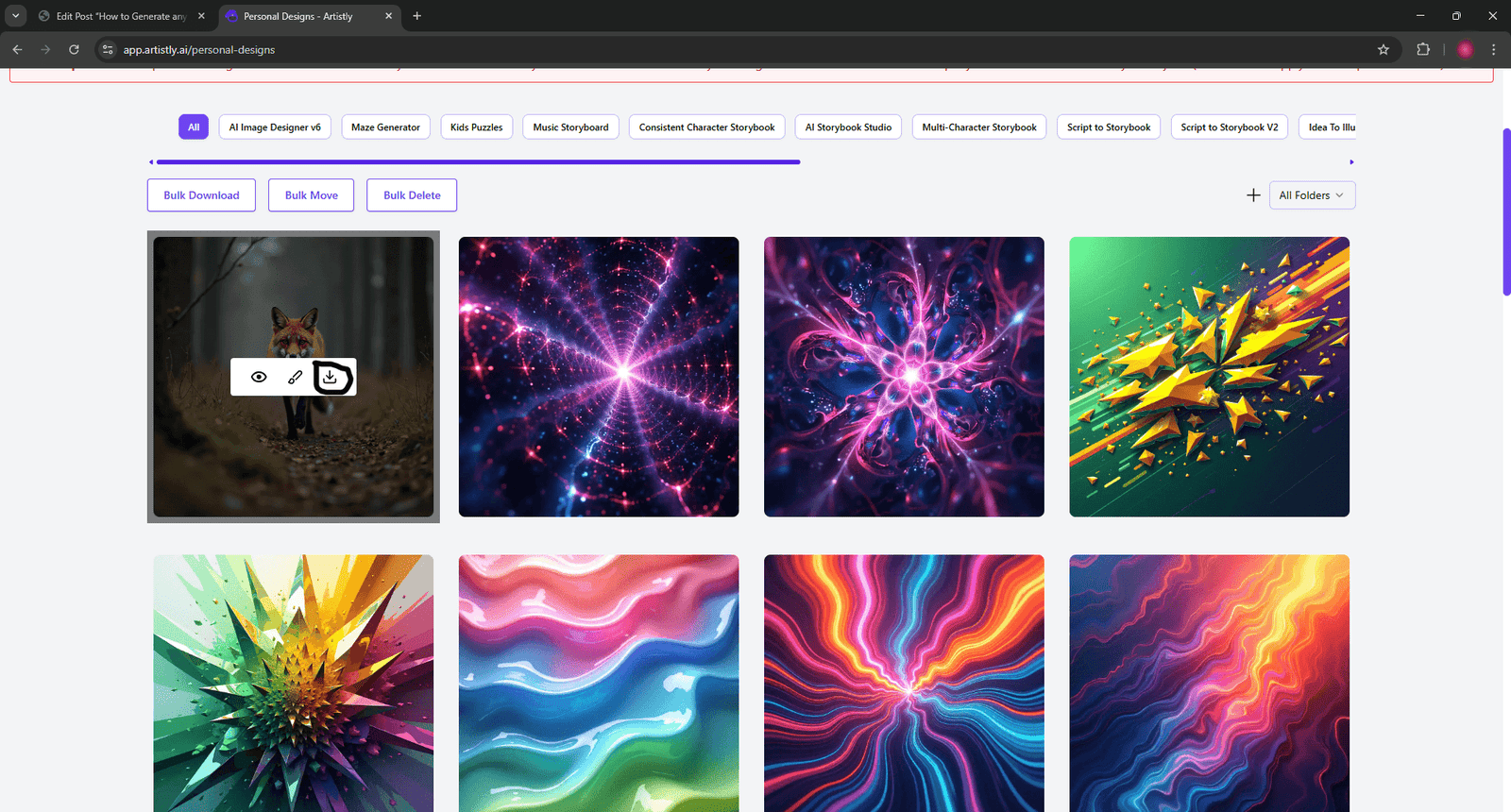
By hovering the mouse over the generated image, you will see three options. The first is the view option. It gives you quick access to some additional options as well as details of the image. The second icon takes you to the edit page, but I’ll leave that for another tutorial.
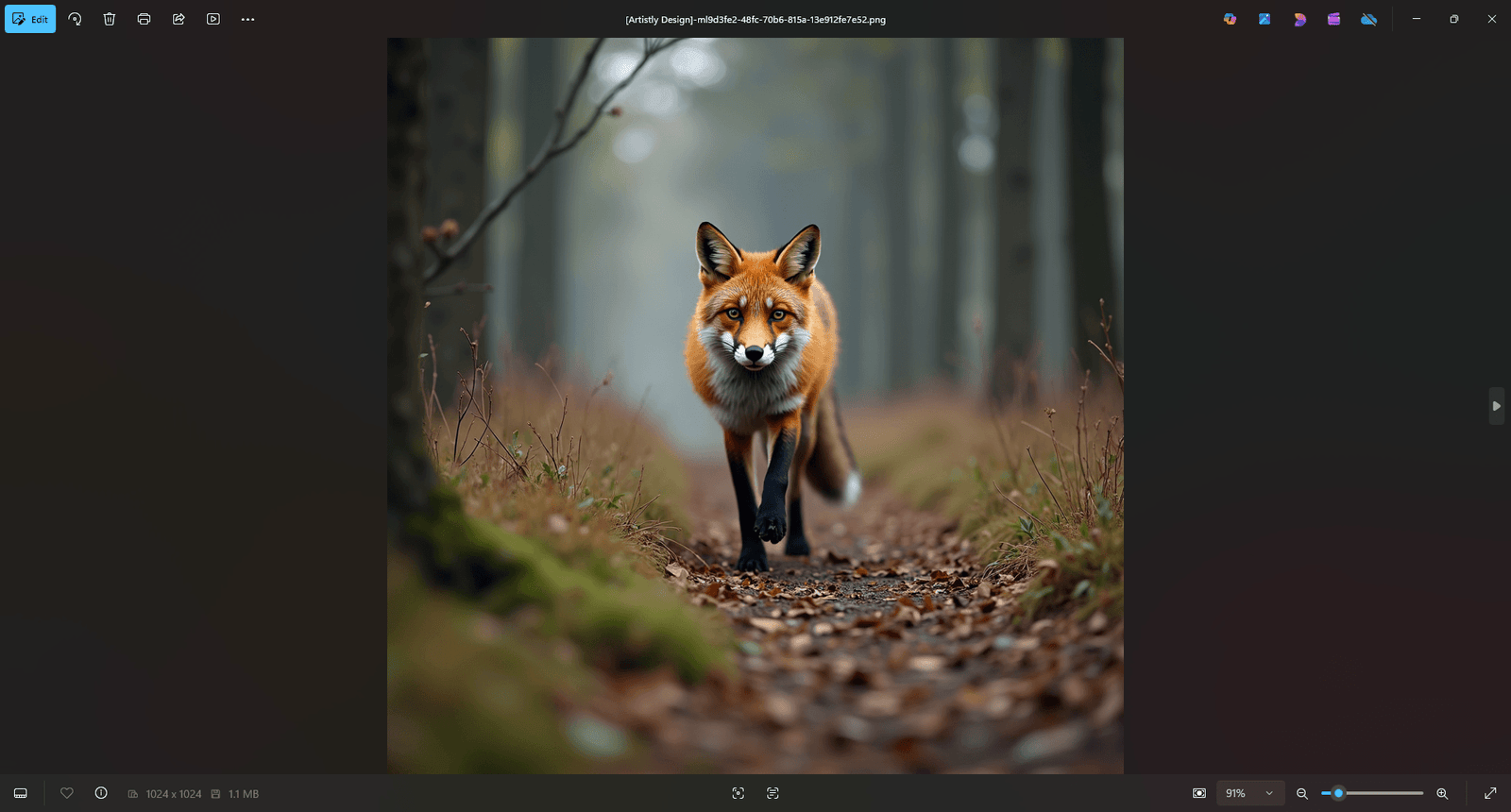
By hovering over the image and selecting the third icon, your image will be downloaded directly into your computer. You can access it in your computer’s downloads folder.
Congratulations! You have generated your first image with Artistly Ai! If you’re interested in using this Ai tool, here’s where you can get it.
One Comment